
Spend your LinkedIn time on posts that matter to you
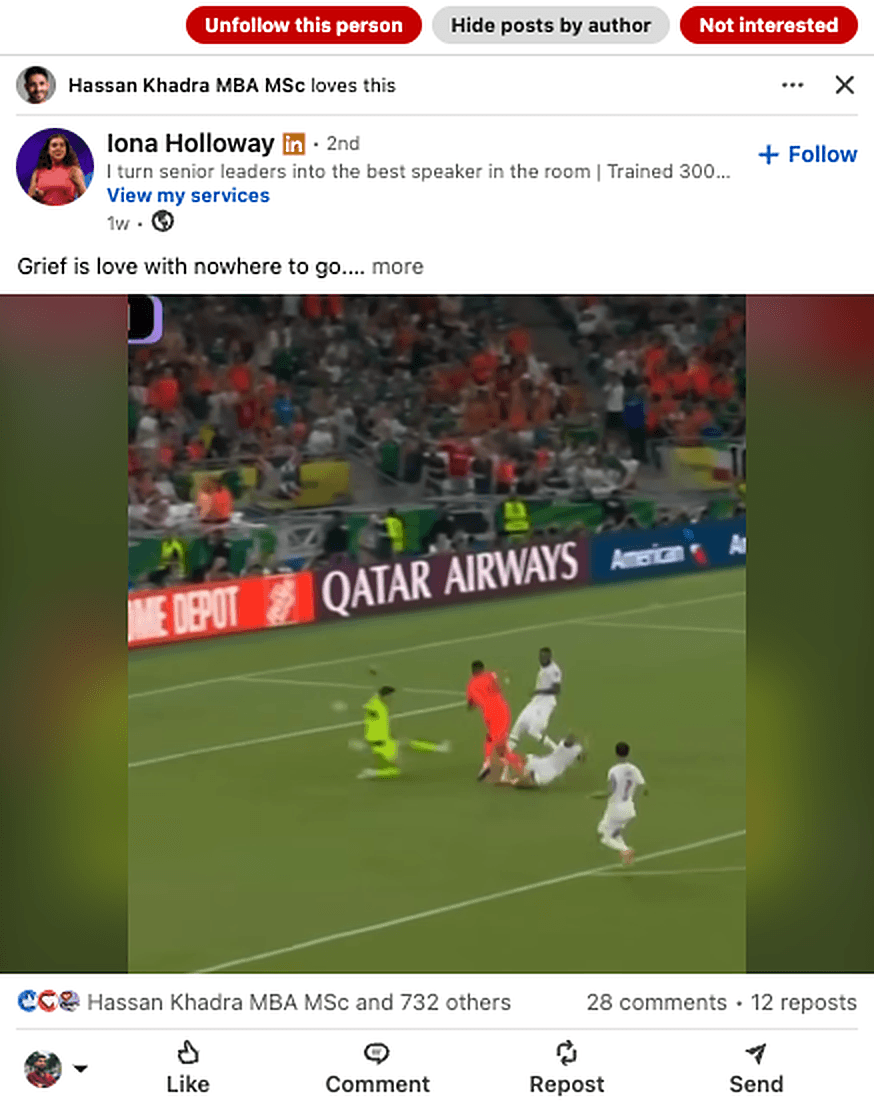
You come to LinkedIn for useful ideas and updates from your network. TuneMyFeed blocks ads and puts Not interested, Unfollow and Hide right on every post, so you can clear out the noise and shape a feed around what matters to you.
Privacy first: your LinkedIn data never leaves your browser.
Works on LinkedIn.com in Chrome & Brave.
You opened LinkedIn for a reason
More signal, less noise
Get back to what you came for
TuneMyFeed helps you clear out the posts you didn't come for, so your feed has room for the ones you did.
Room for posts you'll actually want
Every post you clear out makes room for a new one, often from people in your network you weren't seeing before. Keep tuning, and your feed gets closer to the one you want.
Clean up your feed as you scroll
Not interested, Unfollow or Hide, in one click, right on the post. No menus, no breaking your scroll.
No more ads in your feed
Turn on Block ads once, and promoted posts disappear before you scroll past them.
How it works
- 1
Spot a post you don't want
Not interested, Unfollow and Hide buttons sit right on every post in your feed.
- 2
Click once, right on the post
Each button runs LinkedIn's own action - the one it hides behind the tiny ... menu. Nothing custom, nothing external.
- 3
Your feed adapts
LinkedIn's algorithm listens to these signals. Keep using them, and what it shows you shifts over time.
One click, right on the post
Feed quality
Tell the algorithm what you don't want.
Motivational memes, life lessons, before/after wealth comparisons. Someone finds it funny, and now it's in your feed, taking the place of a post you'd actually want.
Click "Not interested" right on the post. It's a real signal LinkedIn's algorithm listens to - their own help center says so. Keep doing it, and this kind of content fades from your feed.
1The buttons appear on the post 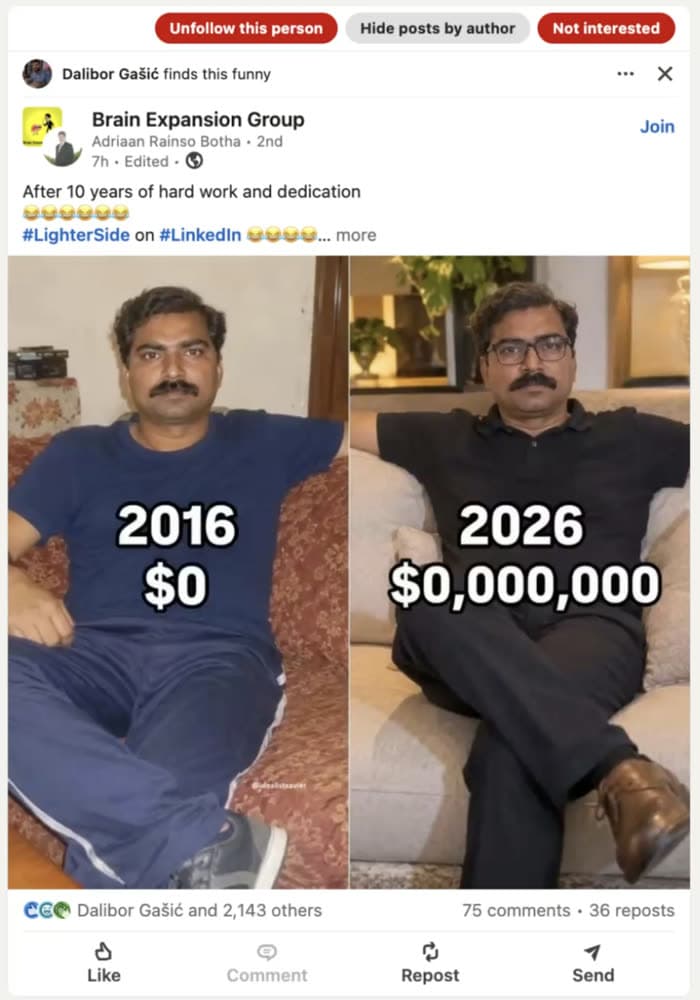
2Click - the post is marked 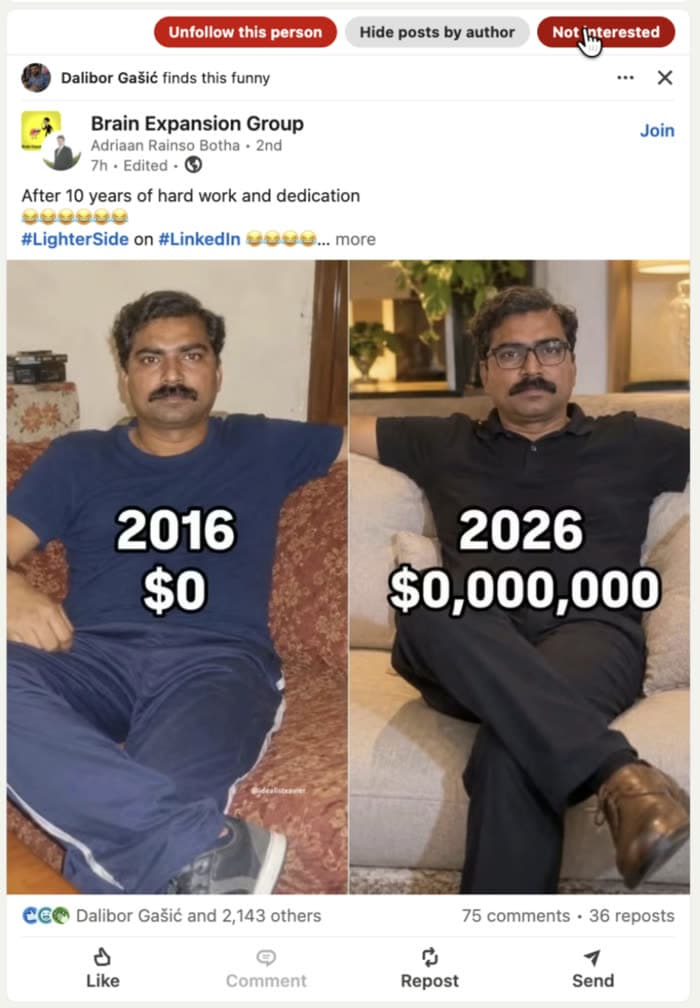
3LinkedIn confirms your feedback 
Activity pollution
A stranger's post in your feed? Only if it's relevant.
Anton Ochel likes a post. You don't follow Anton Ochel for his taste in content - you don't even remember connecting. Now Johannes Euler's career announcement is on your feed because of that chain reaction.
TuneMyFeed puts "Unfollow this person" directly on the post - targeting the author, not the person who reacted. One click and their posts stop showing up, whether they appear directly or via someone else's activity.
1The button targets the post author, not the reactor 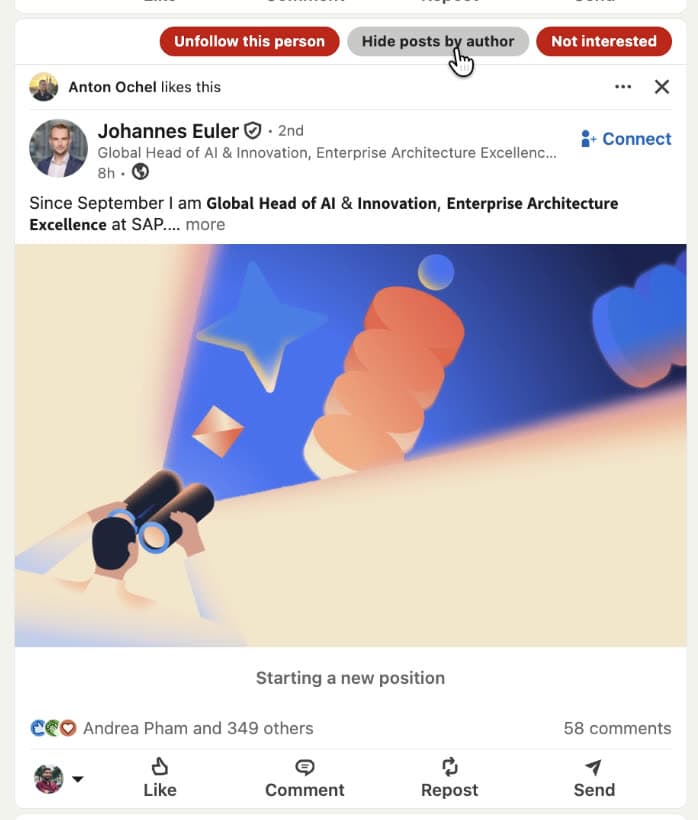
2Click - the author is unfollowed 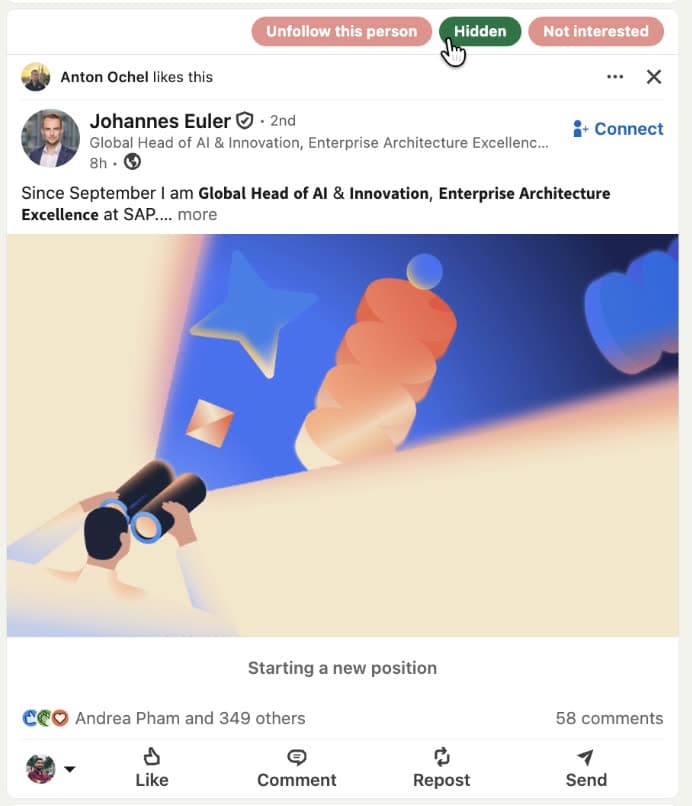
3Their posts won't appear on your feed again 
Feed connections
That person you barely know.
You connected years ago - maybe at a conference, maybe just because. Now their posts clog your feed every week. Not relevant to you professionally, not interesting, just there.
You don't have to remove the connection. TuneMyFeed adds an "Unfollow author" button directly on their post. One click stops their content from appearing - the connection stays, the noise goes.
1The button appears on any post from a connection 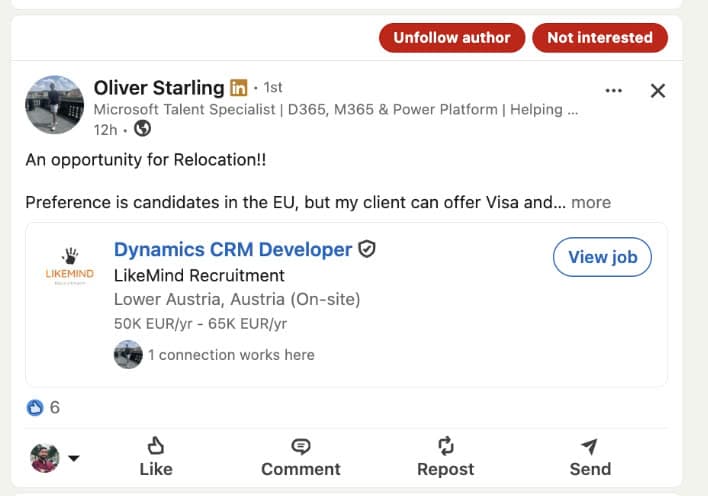
2Click - they're unfollowed 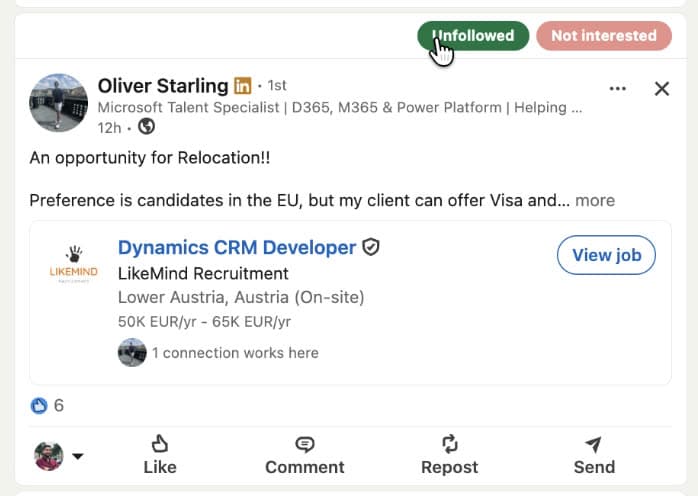
3Connection stays, noise goes 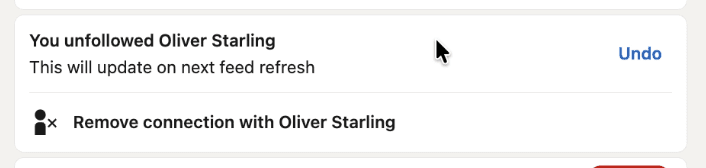
Promoted content
No more of the same ad, again and again.
LinkedIn serves the same promoted posts on repeat. The same vendor pitch, the same "67% of leaders" stat, the same whitepaper - day after day.
Hide one ad with the "Hide ad" button right on the post, and LinkedIn confirms it will show you fewer like it. Or turn on Block ads once, and promoted posts disappear from your feed.
1The button appears on every promoted post 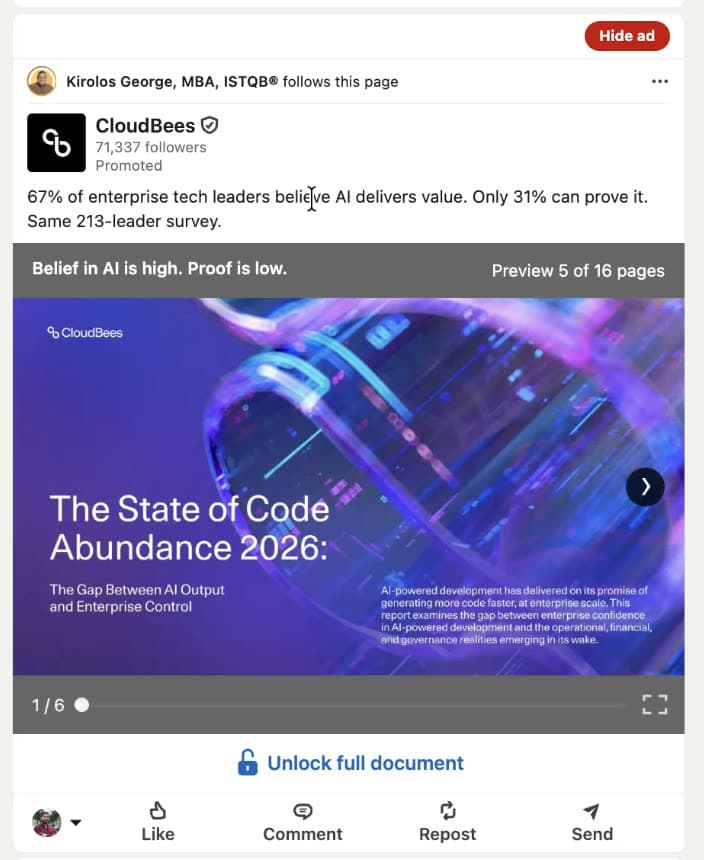
2Click - the ad is hidden 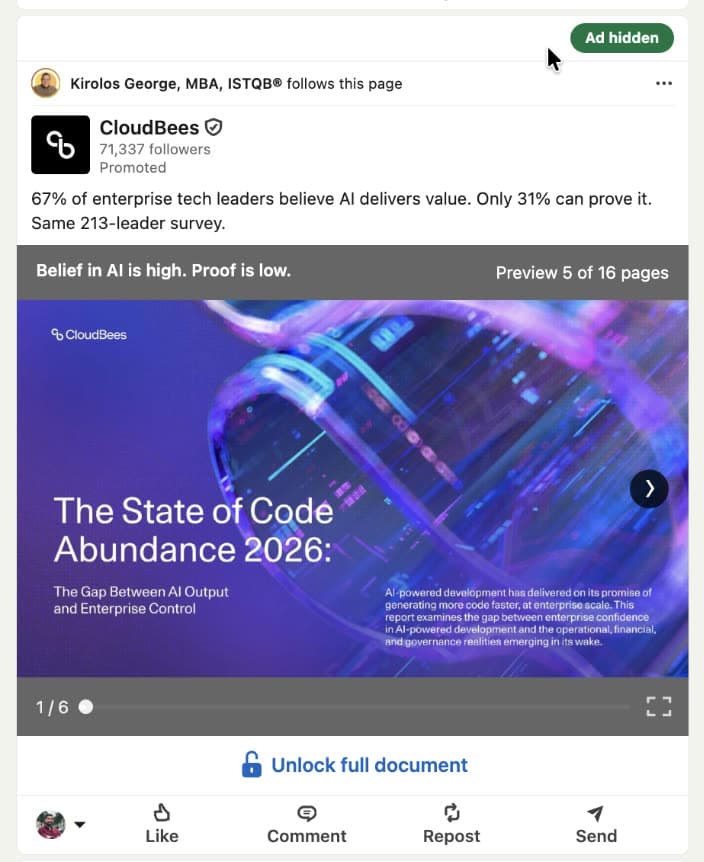
3LinkedIn confirms fewer ads like this 
Privacy first.Your data stays with you.
TuneMyFeed works entirely inside your browser. It never collects, stores or sends anything about what you see or do on LinkedIn: no account, no tracking, no analytics. Built by a company in Berlin, Germany.
- Your LinkedIn data never leaves your browser
- No account
- No tracking
- Only runs on linkedin.com
Free while it's in beta
The extension is free to install right now. No credit card, no account, no strings. Use it for a week. If your feed isn't better, uninstall it.
Add to ChromeFor Chrome & Brave · Works on linkedin.com · No data collected
Frequently asked questions
Ready to get started?
Make room for posts that matter.
Works on Chrome & Brave